General items
Add costs that belong to the whole trip, such as an unlimited green fee pass or a chauffeur for the week, and control who pays for them.
Some costs belong to the whole trip rather than to one day. An unlimited green fee pass or a chauffeur for the week goes in General items, at the bottom of the itinerary editor.
Adding a general item
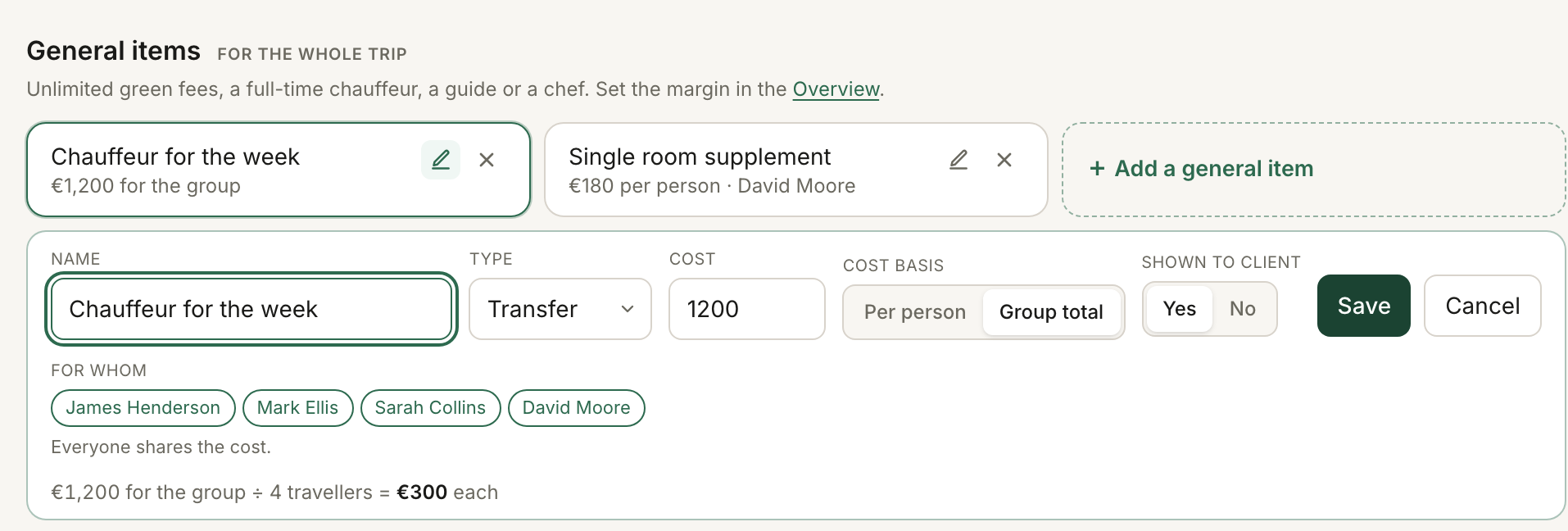
- Open the itinerary editor and scroll below the last day to General items.
- Press + Add a general item.
- Give it a Name, or start from one of the Common presets, such as Unlimited green fee pass, Full-time chauffeur or Chef.
- Choose the Type and enter your Cost.
- Under Cost basis, choose Per person or Group total.
- Set For whom. The item can apply to everyone, golfers, non-golfers or named travellers.
- Choose whether it is Shown to client.
- Press Add.
- Open Overview and set the margin or client price on that item.
The margin does not live in the item form, you can adjust it in the Overview section, alongside all the other costs.
Per person or group total
Choose Per person when the price you enter is for one person. Everyone the item is for gets one. If only some of them need it, type the number in How many: a €40 guide for two people in a group of eight is €40 with How many set to 2.
RoundPlan shows the calculation before you save.
Choose Group total when the supplier gives you one figure for everyone it applies to. A €2,000 chauffeur for eight travellers is shown as:
“€2,000 for the group ÷ 8 travellers = €250 each”
The division follows the group. If the number of travellers changes, you do not need to re-enter the €2,000.
Choosing who it is for
For whom decides whose package carries the cost.
Choose Everyone, Golfers or Non-golfers when the item applies to a whole part of the group. An unlimited green fee pass can therefore stay out of the non-golfers' price.
If the trip uses With names, you can pick individual travellers instead.
On a per-person item, the names also set the quantity. Two names means two items, and How many locks to match them.
On a group-total item, the names do not change the total. They decide who shares that cost when you later split a payment per person.
Setting the margin
General items appear in Overview with Our cost, their margin and Client price, like the other priced parts of the trip.
Change the margin there, or enter the client price you want and RoundPlan calculates the margin.
If certain items have been assigned to only a few travelers from the group, the Overview section separates the pricing into Trip pricing, Paying separately and Group total. This keeps the shared part of the trip separate from the amounts specific people pay.
To change the item's name, cost, quantity or who it is for, return to General items in the itinerary editor.
What the client sees
With “Shown to client: Yes”, the general item appears in the package inclusions. Its individual price only appears when the trip uses Show all prices.
If a per-person item is assigned to specific travellers, their first names can appear with it.
When only some travellers pay for an item, the package price shows the amount everyone pays per golfer and per non-golfer. Underneath, “Some travellers pay for extras on top. See who pays what” opens the extra amounts and the first names attached to them.
An item that every golfer or every non-golfer pays is already part of that group's price, so it does not need to appear again in that list.
With “Shown to client: No”, the item is completely hidden from the client page. Its cost remains in the package price.
For more on what the traveller sees, see The client portal.
Still stuck? Email support@roundplan.io and a human replies.